Archives

Showing posts with label Spatial Data. Show all posts

Thursday, January 20, 2011

SQL Server “Denali” – Promising the Earth!

I’ve previously posted several articles about spatial data support in SQL Server, and as I continue my exploration of SQL Server “Denali” CTP1, I’ve encountered a few interesting new enhancements to the geometry and geography data types. I won’t go into full details here, because Ed Katibah and Milan Stojic have already saved me the trouble by writing a whitepaper that provides comprehensive round-up of the changes in this release; however, I do want to make a few observations relating to the new enhanced support for curved lines and shapes.

SQL Server “Denali” introduces a few new spatial shapes, including CIRCULARSTRING, COMPOUNDCURVE, and CURVEPOLYGON. A CIRCULARSTRING line is a sequence of an odd number of at least three points, which are connected to form a curved arc. For example, consider the following Transact-SQL:

DECLARE @g geography = 'CIRCULARSTRING(-4.115 55.778, -3.399 56.990, -2.237 54.009)'

This creates a geography instance that represents a curved line like this:

CIRCULARSTRING

Compare this to the line produced by using the LINESTRING shape, as shown here:

DECLARE @g geography = 'LINESTRING(-4.115 55.778, -3.399 56.990, -2.237 54.009)'

LINESTRING

Of course, both of these lines are “open”. You can create a closed CIRCULARSTRING line by defining at least five points and making the final point in the line the same as the first, as shown here:

DECLARE @g geography = 'LINESTRING(-4.115 55.778, -3.399 56.990, -2.237 54.009, -3.168 53.863, -4.115 55.778)'

ClosedCircleString

A COMPOUNDCURVE is a curved shape that is composed of one or more CIRCULARSTRING arcs and linear sections that are contiguously joined by having the final point in each segment the same as the first point in the next segment. For example, the following Transact-SQL creates a COMPOUNDCURVE shape from two CIRCULARSTRING arcs and a linear section. Note that you do not specify a keyword for the linear sections.

DECLARE @g geography = 'COMPOUNDCURVE(
                          CIRCULARSTRING(-4.000 55.000, -4.500 54.500, -4.000 54.000),
                          (-4.000 54.000, 1.000 54.000),
                          CIRCULARSTRING(1.000 54.000, 1.500 54.500, 1.000 55.000))'

CompoundCurve

A CURVEPOLYGON is a surface area that is formed by a closed curved line, which can be defined by a CIRCULARSTRING or a COMPOUNDCURVE. When working with the geometry data type, the points in the curved area can be defined in any order, but when using he geography type, you must observe the “left foot rule”, which dictates that you must describe the shape as if you were pacing it out on the ground and the “inside” of the shape is always on your left. For example, here’s a Transact-SQL statement that defines a CURVEPOLYGON based on a CIRCULARSTRING:

SELECT geography::Parse('CURVEPOLYGON(

                           CIRCULARSTRING(-4.889 55.844,

                                          -3.924 55.738,

                                          -2.731 56.058,

                                          -4.201 56.134,

                                          -4.889 55.844)

                                       )')

This defines an area in the UK within the so-called “central belt” of Scotland, as shown here. Note that the points describe the shaded area, which is what would be on your left if you paced out the area from point to point in the sequence in which they are specified.

CentralBelt

Now, what happens if I reverse the order of the points as shown here?

SELECT geography::Parse('CURVEPOLYGON(

                           CIRCULARSTRING(-4.889 55.844,

                                          -4.201 56.134,

                                          -2.731 56.058,

                                          -3.924 55.738,

                                          -4.889 55.844)

                                       )')

The “left foot rule” clearly tells SQL Server to include everything on my left side as I pace out the shape, and since the Earth is a sphere, this shape actually describes the entire surface of the planet except for the “hole” defined by the points in the CIRCULARSTRING.

EverythingElse 

In previous releases of SQL Server, this would have caused an error because shapes larger than a hemisphere were not supported. However, in SQL Server “Denali”, you can create a shape that covers as much of the surface of the Earth as you like, so this code is perfectly valid. Clearly, the message here is that you need to be very careful when defining surface areas (be they CURVEPOLYGON or regular POLYGON shapes) to apply the “left foot rule” to include the surface area you actually intend to, and not the rest of the world!

Speaking of which, one other new feature worth mentioning is the inclusion of a FULLGLOBE shape, which returns a surface area that covers, you guessed it, the full globe. For example, the following code returns the area of the planet’s surface in square kilometres:

DECLARE @theEarth geography = geography::STGeomFromText('FULLGLOBE', 4326)
SELECT @theEarth.STArea()/1000000

The Spatial Reference Identifier (SRID) 4326 specifies that the WGS84 standard model of the earth’s shape should be used, which means that the result of the call to the  STArea method is returned in square metres, which we then divide by 1000000 to get the answer in square kilometres.

And just in case you’re interested, the Earth’s surface is just a little over  510,065,621 km2!

del.icio.us Tags:
Read More >>

Tuesday, November 23, 2010

Drupal 7 and SQL Server Spatial Data

In a previous post, I explored integration between Drupal 7 and SQL Server Reporting Services. In this post, I’ll examine how you can take advantage of the fact that Drupal 7 can be installed on SQL Server to store geographic data using SQL Server 2008’s spatial data support, and also how you can integrate Bing Maps and Twitter geographic data into your Drupal site.

Drupal and SQL Server Spatial Data Demo

Microsoft introduced support for spatial data in SQL Server 2008 (see some of my past posts for details), and given that you can now install Drupal on Windows with a SQL Server content database, it makes sense to use this support to extend your Drupal site to include content with a geographical element. The scenario we decided to use when exploring this idea was a site for a local arts festival that includes the ability to publish details of events, including their location. However, you could easily adapt the idea for any content that has a location-based element. The video shows the solution we created (you can also view the video on YouTube).

Our solution not only incorporates spatial data that is stored in SQL Server, but also uses the Bing Maps control to visualize the spatial data, and retrieves tweets that include a geographic location from Twitter. This sort of “mash-up” approach where data and services from multiple sources on the Web are combined to create a rich user experience is the very essence of today’s most cutting edge Web applications, and when combined with the social/community-based publishing capabilities of Drupal it can be used to create some pretty compelling compelling solutions.

The diagram below shows the high-level architecture of the solution. Note that the SQL Server database forms the “data hub” of the application, storing the geographical data from both the Drupal content and the related tweets (which are retrieved and cached in the database periodically using the Cron scheduler in Drupal).

SpatialArchitecture

At the heart of the solution is a set of custom Drupal modules that we implemented in PHP. These are packages and installed in the Drupal site to add the required spatial data functionality. The first module we created, and the one on which the others all depend, is a module named GeoField that defines a Location field type that can be included in Drupal content types. The Location field type stores a geographical Longitude-latitude point in well-known text (WKT) format, which can easily be instantiated as a SQL Server geography data type instance. The module also defines a widget for setting Location values, which consists of a textbox and a Bing Maps control. Users can enter an address in the text box and geocode it using the Bing Maps API, or they can right-click a point on the map and reverse-geocode the address. The code to do the geocoding is implemented in JavaScript as described in a previous blog post. The following PHP functions define the field info and schema within Drupal:

function geo_field_field_info() {
  return array(
    'geo_field_Location' => array(
      'label' => t('Location Data'),
      'description' => t('A field for storing geographic data.'),
      'default_widget' => 'geo_field_bingmap',
      'default_formatter' => 'geo_field_simple_text',
    ),
  );
}

function geo_field_field_schema($field) {
  $columns = array(
    'location' => array('type' => 'varchar', 'length' => 255, 'not null' => FALSE),
  );
  $indexes = array(
    'location' => array('location'),
  );
  return array(
    'columns' => $columns,
    'indexes' => $indexes,
  );
}

The Bing Maps widget, and an alternative simple textbox-based widget, is defined with the following PHP code:

function geo_field_field_widget_form(&$form, &$form_state, $field, $instance, $langcode, $items, $delta, $element) {
   $value = isset($items[$delta]['location']) ? $items[$delta]['location'] : '';
  $element += array(
    '#delta' => $delta,
  );
  $element['location'] = array();

  switch ($instance['widget']['type']) {

    case 'geo_field_bingmap':
    drupal_add_js('
http://dev.virtualearth.net/mapcontrol/mapcontrol.ashx?v=6.3', 'external');
      $element['location'] += array(
        '#prefix' => '',
        '#attributes' => array('class' => array('edit-field-geomap')),
        '#attached' => array(
       
         'js' => array(drupal_get_path('module', 'geo_field') . '/BingMaps.js'),       
        ),
        '#suffix' => '<div class="bing-map-control form-item form-type-textfield"><label for="txtAddress">Address</label><input type="text" id="txtAddress" class="form-text bing-map-address" size="60"/><input type="button" value="Find" class="location-search-button form-submit" class="form-submit" /><br/><div id="mapDiv" class="bing-map-edit bing-map" style="position:relative; width:400px; height:300px;"></div></div>',
      );
     

    case 'geo_field_geotext':
      $element['location'] += array(
       '#prefix' => '<div class="geo_field_geotext" style=" margin-top:20px; border: thin solid #808080;"><p>Enter a location:</p>',
        '#type' => 'textfield',
        '#default_value' => $value,
        '#size' => 50,
        '#maxlength' => 255,
        '#suffix' => '</div>',
      );
      break;

     }
  return $element;
}

Note the reference to the Bing Maps API and to the BingMaps.js JavaScript file, which includes the code used to handle the user interaction with the Bing Maps control.

The next task was to create a GeoEvent module that defines a content type for a festival event. This content type includes a Location field as well as more standard Drupal fields, such as a title, image, description, tags, and a simple text field to specify the date and time of the event.

The final module to be created was the GeoMap module, which defines the Event Map page on which events and tweets are plotted. The code in this module includes the following function, which retrieves the events from the Drupal database and returns them as a GeoRSS feed that can be imported into the Bing Maps control by client-side JavaScript code.

function geo_map_events() {
    global $base_url, $language_content;
  
    $results = db_query(
        'SELECT r.title, b.body_value what, r.nid, w.[event_location_location] loc, geography::STPointFromText(w.[event_location_location], 4326).AsGml() [where] '.
        'FROM node_revision r '.
        'LEFT JOIN field_revision_body b ON r.nid = b.revision_id '.
        'JOIN field_revision_event_location w ON w.revision_id = r.nid '.
        'JOIN node n ON r.nid = n.nid '.
        'WHERE n.type = \'event\'');
   
    $items = '';
    $addedItems = 0;
    foreach ($results as $result) {
        // We have to add in the namespaces here else the Bing control
        // can't parse the content.
        $xml = str_replace('<', '<gml:', $result->where);
        $xml = str_replace('gml:/', '/gml:', $xml);
       
        $description = $result->what != '' ? $result->what . '&lt;br /&gt;' : '';
        $description .= '&lt;a href=\'index.php?q=node/' . $result->nid . '\'&gt;More info&lt;/a&gt; &lt;br /&gt;';
        $description .= '&lt;a href="#' . $result->loc . '" class="twitter-button" &gt; &lt;img src="modules/geo_field/images/twitter.png" alt="Show nearby tweets" /&gt; &lt;/a&gt;';
       
        $item_text = '<entry>'.
                    '<title>' . $result->title . '</title>'.
                    '<description>' . $description .'</description>'.
                    '<georss:where>' . $xml .
                    '</georss:where>'.
                  '</entry>';

        $items .= $item_text;
        $addedItems++;
    }

  if ($addedItems == 0) {
    $placeholder_text  ='<entry>' .
      '<title>Placeholder</title>'.
      '<description></description>'.
      '<georss:where><gml:Point xmlns="http://www.opengis.net/gml"><gml:pos>-90 0</gml:pos></gml:Point>'.
            '</georss:where>'.
            '</entry>';
    $items .= $placeholder_text;
  }
 
  $output  = "<?xml version=\"1.0\" encoding=\"utf-8\"?>\n";
  $output .= "<feed xmlns='http://www.w3.org/2005/Atom' xmlns:georss='http://www.georss.org/georss' xmlns:gml='http://www.opengis.net/gml'>\n";
  $output .=
        "<title>Festival Events</title>\n".
              "<subtitle>Events for the 2010 festival</subtitle>\n".
              "<author>\n".
                "<name>Drupal Administrator</name>\n".
              "</author>";
  $output .= $items;
  $output .= "</feed>\n";

  drupal_add_http_header('Content-Type', 'text/xml; charset=utf-8');
  print $output;
}

Note that the query used to retrieve the data uses the SQL Server geography type’s STPointFromText function to instantiate a geography instance from the WKT representation of each location, and the AsGml method to then convert that geography instance to Geographic Markup Language (GML) format. This enables the code to simply embed the GML representation of the location into the GeoRSS feed (since a GeoRSS feed is in effect an XML representation of a collection of GML entities). If no locations are found, a placeholder location is created to avoid returning an empty feed.

The client-side JavaScript to request this feed and display the results as a layer on the Bing Maps control is in a  script file named EventMaps.js, which is referenced by the Drupal page:

function showEvents() {
  eventLayer.DeleteAllShapes();
  var url = "index.php?q=geo_field/items_georss";
  var veLayerSpec = new VEShapeSourceSpecification(VEDataType.GeoRSS, url, eventLayer);
  map.ImportShapeLayerData(veLayerSpec, function(feed) {
        var numShapes = feed.GetShapeCount();
        for (c = 0; c < numShapes; c++) {
            var shape = feed.GetShapeByIndex(c);
     
      if (shape.GetDescription() == 'Placeholder' &&
          shape.GetTitle() == 'Placeholder') {
        eventLayer.DeleteAllShapes();
      }
     
            shape.SetCustomIcon("modules/geo_field/images/pin.png");
        }

    }, false);
   
    map.SetCenterAndZoom(new VELatLong(55.67630968987942, 12.569355145096778), 10);
}

Note that if the layer contains only a placeholder location (because there were no events), the location is deleted to produce an empty map.

The GeoMap module also includes a function that queries Twitter to return any tweets containing a specified hash-tag (which the administrator can set in the settings for the module). These tweets are then inserted into a table in the SQL Server database. The table includes a geography column in which the location of the tweet is stored.

function tweets_download() {
    $tweetsfeed = "http://search.twitter.com/search.json?q=%23" . variable_get('geomap_hashtag', 'drupalcon');
   
    $results = json_decode(file_get_contents($tweetsfeed), TRUE);
   
  // Insert items into the table if they're not already there.
    $insertquery =
        "IF NOT EXISTS ".
        "(SELECT * FROM dbo.tweets WHERE TwitterID = :tweetid1) ".
        "INSERT INTO dbo.Tweets VALUES " .
        "(:datetime, :tweeter, :content, geography::GeomFromGml(:location, 4326), :tweetid2)";
   
    foreach ($results['results'] as $tweet) {
        if ($tweet['geo'] != null) {
            $pointdetails =
                "<Point xmlns='http://www.opengis.net/gml'><pos>" .
                $tweet['geo']['coordinates'][0] . ' ' . $tweet['geo']['coordinates'][1] .
                "</pos></Point>";
               
            $timestamp = strtotime($tweet['created_at']);
            $sqldate = date('c', $timestamp);
           
            $sqldate = substr($sqldate, 0, strlen($sqldate) - 6);
       
            $params = array(
                    'tweetid1' => $tweet['id'],
                    'tweetid2' => $tweet['id'],
                    'datetime' => $sqldate,
                    'tweeter' => $tweet['from_user'],
                    'content' => $tweet['text'],
                    'location' => $pointdetails);
                           
            db_query(
                $insertquery,
                $params);
        }
    }
}

Note that the Transact-SQL query executed by the code uses the SQL Server geography data type’s GeomFromGml function to convert the value retrieved from Twitter into a geography instance before storing it in the table. This function is called by the Drupal Cron scheduler, so the table of tweets is updated periodically.

When the user clicks the Twitter icon for an individual event, the following PHP function is used to retrieve the tweets within 500m of the event and return them as a GeoRSS feed to be displayed on the map.

function geo_map_tweets_feed($location) {
  // Use the location functionality in MSSql to query all tweets near a given
  // location.
    $results = db_query(
        'SELECT    Tweeter + \' (\' + cast(TweetDateTime as nvarchar(50)) + \')\' as tweeter, '.
        'Tweet as tweet, '.
        'TweetLocation.AsGml() as [where] '.
        'FROM tweets '.
        'WHERE TweetLocation.STIntersects(geography::STPointFromText(\'POINT(' . $location . ')\', 4326).STBuffer(500)) = 1');
   
    $items = '';
    $found = false;
   
    foreach ($results as $result) {
        $found = true;
        $xml = str_replace('<', '<gml:', $result->where);
        $xml = str_replace('gml:/', '/gml:', $xml);

        $item_text = '<entry>'.
                    '<title>' . $result->tweeter . '</title>'.
                    '<description>' . $result->tweet .'</description>'.
                    '<georss:where>' . $xml .
                    '</georss:where>'.
                  '</entry>';

        $items .= $item_text;
    }
       
    if (!$found) {   
        $items = '<entry>'.
                    '<title>Placeholder</title>'.
                    '<description>Placeholder</description>'.
                    '<georss:where><gml:Point xmlns="http://www.opengis.net/gml"><gml:pos>-90 0</gml:pos></gml:Point>'.
                    '</georss:where>'.
                  '</entry>';
    }

  $output  = "<?xml version=\"1.0\" encoding=\"utf-8\"?>\n";
  $output .= "<feed xmlns='http://www.w3.org/2005/Atom' xmlns:georss='http://www.georss.org/georss' xmlns:gml='http://www.opengis.net/gml'>\n";
  $output .= "<title>Festival Events</title>\n".
             "<subtitle>Events for the 2010 festival</subtitle>\n".
              "<author>\n".
                "<name>Drupal Administrator</name>\n".
              "</author>";
  $output .= $items;
  $output .= "</feed>\n";

  drupal_add_http_header('Content-Type', 'text/xml; charset=utf-8');
  print $output;   
}

Note that the WHERE clause of the Transact-SQL query executed by the code uses the STIntersects and STBuffer methods of the geography data type to find tweets within a 500m buffer of the event (which is instantiated as a geography instance by using the STPointFromText method as before).

As with the Reporting Services demo I blogged about previously, this solution we built was based on pre-beta releases of Drupal 7 and the related SQL Server driver for PDO and SQL Server module. To avoid the inevitable versioning issues that tend to arise with pre-release code dependencies, I haven’t includes the full source code. The plan is to publish it on CodePlex when the final release of Drupal 7 and the associated SQL Server components is available. Until then, hopefully you’ll find this article useful as an insight into the kinds of spatial data solutions you can build with Drupal and SQL Server.

Read More >>

Thursday, December 24, 2009

Further Adventures in Spatial Data with SQL Server 2008 R2

Wow! Doesn’t time fly? In November last year I posted the first in a series of blog articles about spatial data in SQL Server 2008. Now here we are over a year later, and I’m working with the November CTP of SQL Server 2008 R2. R2 brings a wealth of enhancements and new features – particularly in the areas of multi-server manageability, data warehouse scalability, and self-service business intelligence. Among the new features that aren’t perhaps getting as much of the spotlight as they deserve, is the newly added support for including maps containing spatial data in SQL Server Reporting Services reports. This enables organizations that have taken advantage of the spatial data support in SQL Server 2008 to visualize that data in reports.

So, let’s take a look at a simple example of how you might create a report that includes spatial data in a map. I’ll base this example on the same Beanie Tracker application I created in the previous examples. To refresh your memory, this application tracks the voyages of a small stuffed bear named Beanie by storing photographs and geo-location data in a SQL Server 2008 database. You can download the script and supporting files you need to create and populate the database from here. The database includes the following two tables:

-- Create a table for photo records
CREATE TABLE Photos
([PhotoID] int IDENTITY PRIMARY KEY,
[Description] nvarchar(200),
[Photo] varbinary(max),
[Location] geography)
GO

-- Create a table to hold country data
CREATE TABLE Countries
(CountryID INT IDENTITY PRIMARY KEY,
CountryName nvarchar(255),
CountryShape geography)
GO

The data in the Photos table includes a Location field that stores the lat/long position where the photograph was taken as a geography point. The Countries table includes a CountryShape field that stores the outline of each country as a geography polygon. This enables me to use the following Transact-SQL query to retrieve the name, country shape, and number of times Beanie has had his photograph taken in each country:

SELECT CountryName,
CountryShape,
(SELECT COUNT(*)
FROM Photos p
WHERE (Location.STIntersects(c.CountryShape) = 1))
AS Visits
FROM Countries c

With the sample data in the database, this query produces the following results:

CountryNameCountryShapeVisits
France0xE6100000 … (geography data in binary format)1
Egypt0xE6100000 … (geography data in binary format)2
Kenya0xE6100000 … (geography data in binary format)1
Italy0xE6100000 … (geography data in binary format)2
United States of America0xE6100000 … (geography data in binary format)7
United Kingdom0xE6100000 … (geography data in binary format)2

To display the results of this query graphically on a map, you can use SQL Server Business intelligence Development Studio or the new Report Builder 3.0 application that ships with SQL Server 2008 R2 Reporting Services. I’ll use Report Builder 3.0, which you can install by using Internet Explorer to browse to the Report Manager interface for the SQL Server 2008 R2 Reporting Services instance where you want to create the report (typically http://<servername>/reports) and clicking the Report Builder button.

When you first start Report Builder 3.0, the new report or dataset page is displayed as shown below (if not, you can start it by clicking New on the Report Builder’s main menu).

Picture1

This page includes an option for the Map Wizard, which provides an easy way to create a report that includes geographic data. To start the wizard, select the Map Wizard option and click Create. This opens the following page:

Picture2

SQL Server 2008 R2 Reporting Services comes with a pre-populated gallery of maps that you can use in your reports. Alternatively, you can import an Environmental Systems Research Institute (ESRI) shapefile, or you can so what I’m doing and use a query that returns spatial data from a SQL Server 2008 database.

After selecting SQL Server spatial query and clicking Next, you can choose an existing dataset or select the option to create a new one. Since I don’t have an existing dataset, I’ll select the option to Add a new dataset with SQL Server spatial data and click Next, and then create a new data source as shown here:

Picture4

On the next screen of the wizard, you can choose an existing table, view, or stored procedure as the source of your data, or you can click Edit as Text to enter your own Transact-SQL query as I’ve done here:

Picture5

The next page enables you to select the spatial data field that you want to display, and provides a preview of the resulting map that will be included in the report.

Picture6

Note that you can choose to embed the spatial data in the report, which increases the report size but ensures that the spatial map data is always available in the report. You can also add a Bing Maps layer, which enables you to “superimpose” your spatial and analytical data over Bing Maps tiles as shown here:

Picture7

Next you can choose the type of map visualization you want to display. These include:

  • Basic Map: A simple visual map that shows geographical areas, lines, and points.
  • Color Analytical Map: a map in which different colors are used to indicate analytical data values (for example, you could use a color range to show sales by region in which more intense colors indicate higher sales)
  • Bubble Map: A map in which the center point of each geographic object is shown as a bubble, the size or color of which indicates an analytical value.

Picture8

To show the number of times Beanie has visited a country, I’m using a bubble map. Since the bubbles must be based on a data value, I must now choose the dataset that contains the values that determine the size of the bubbles.

Picture9

Having chosen the dataset, I now get a confirm or chance to change the default matches that the wizard has detected.

Picture10

Finally, you can choose a visual theme for the map and specify which analytical fields determine bubble size and the fill colors used for the spatial objects.

Picture11

Clicking Finish, generates the report, which you can make further changes to with Report Builder.

Picture12

Selecting the map reveals a floating window that you can use to edit the map layers or move the area of the map that is visible in the map viewport (the rectangle in which the map is displayed).

Picture13

You can make changes to the way the map and its analytical data are displayed by selecting the various options on the layer menus. For example, you can:

  • Click Polygon Properties to specify a data value to be displayed as a tooltip for the spatial shapes on the map.
  • Click Polygon Color Rule to change the rule used to determine the fill colors of the spatial shapes on the map.
  • Click Center Point Properties to add labels to each center point “bubble” on the map.
  • Click Center Point Color Rule to change the rule used to determine the color of the bubbles, including the scale of colors to use and how the values are distributed within that scale.
  • Click Center Point Size Rule to change the rule used to determine the size of the bubbles, including the scale of sizes to use and how the values are distributed within that scale.
  • Click Center Point Marker Type Rule to change the rule used to determine the shape or image of the bubbles, including a range of shapes or images to use and how the values are matched to shapes or images in that range.

At any time, you can preview the report in Report builder by clicking Run. Here’s how my report looks when previewed.

Picture14

When you’re ready to publish the report to the report server, click Save on the main menu, and then click Recent Sites and Servers in the Save As Report dialog box to save the report to an appropriate folder on the report server.

Picture15

After the report has been published, users can view it in their Web browser through the Report manager interface. here’s my published report:

Picture16

I’ve only scratched the surface of what’s possible with the map visualization feature in SQL Server 2008 R2 Reporting Services. When combined with the spatial data support in SQL Server 2008 it really does provide a powerful way to deliver geographical analytics to business users, and hopefully you’ve seen from this article that it’s pretty easy to get up and running with spatial reporting.

Read More >>

Monday, January 12, 2009

Adventures in Filestream Data

Regular readers of this blog may have seen my previous article on using SQL Server 2008's new spatial data support to create the Beanie Tracker Web application. The application tracks the travels of a small white bear named Beanie, using Virtual Earth to show photos of him at various locations around the world. The idea for creating the application came from a whitepaper and a hands-on lab I created for the SQL Server marketing team at Microsoft.

As part of the same project for the SQL Server marketing team, I wrote a whitepaper on managing unstructured data in SQL Server 2008, which includes a short description of another new feature: FILESTREAM data. The idea behind FILESTREAM is to help solve a common problem in database solutions that need to store binary large object (BLOB) data such as images or multimedia objects. In the past, you've basically had two choices for storing BLOBs; you can store them in the database in varbinary columns, or you can store them on the file system and include a file path reference in the database so that applications can find them. The debate about which of these approaches is the best one is well documented, and usually boils down to a tradeoff between the performance advantages and data access flexibility of storing the data on the file system versus the manageability benefits of storing the data in the database. FILESTREAM support in SQL Server 2008 is designed to offer a best of both worlds approach in which the data is stored physically on the file system, but managed as if it were stored in the database. Additionally, a dual programming model enables the data to be accessed through Transact-SQL statements or through the Win32 file streaming API. FILESTREAM is supported in all editions of SQL Server 2008 (other than Compact Edition) - including SQL Server Express; and it's worth noting that because the data is physically stored in the file system, your binary data is not counted when restricting the size of a SQL Server Express database to 4 GB. To try all this for myself, I decided to modify the Beanie Tracker application to store the photos of Beanie as FILESTREAM data. This proved remarkably simple.

The first step was to configure FILESTREAM support in the SQL Server instance. To do this, you view the properties of the SQL Server instance in SQL Server Configuration Manager and set the appropriate values on the FILESTREAM tab as shown here:

EnableFS

Next you need to use sp_configure to enable FILESTREAM as shown here:

EXEC sp_configure filestream_access_level, 2
RECONFIGURE

Now that FILESTREAM is enabled, you can create a database that can store FILESTREAM data:

CREATE DATABASE BeanieTrackerFS
ON PRIMARY(NAME=BeanieData, FILENAME='c:\data\BeanieData.mdf'),
FILEGROUP BeanieFSFG CONTAINS FILESTREAM(NAME=BeanieFS, FILENAME='c:\data\beaniefs')
LOG ON(NAME=BeanieLog, FILENAME='c:\data\BeanieLog.ldf')

Note the inclusion of a filegroup that contains FILESTREAM data. The FILENAME parameter for this filegroup is the folder on the file system where the FILESTREAM data will be stored. If you take a look at this location in Windows Explorer, you'll see the files and folders that SQL Server uses to store the data as shown here (you need to give yourself permission to view the folder):

FSFolder

Now you can create a table with a varbinary(max) column for your FILESTREAM data. By specifying the FILESTREAM attribute for the column, you ensure that the data is stored in the FILESTREAM filegroup (and therefore on the file system) rather than in the database data pages:

CREATE TABLE Photos
([PhotoID] uniqueidentifier ROWGUIDCOL NOT NULL PRIMARY KEY,
[Description] nvarchar(200),
[Photo] varbinary(max) FILESTREAM NULL,
[Location] geography)

Note that you also need to include a ROWGUID column when storing FILESTREAM data. In the previous version of the Beanie Tracker database, the PhotoID column was an integer. I changed it to a uniqueidentifier column in this version.

After the table has been created, you can treat the FILESTREAM column just as if it were an ordinary varbinary column. For example, here's a Transact-SQL statement to insert a photo from an existing .jpg file:

INSERT INTO Photos
([PhotoID], [Description], Photo, Location)
VALUES
(Newid(),'Beanie in Paris',
(SELECT * FROM OPENROWSET(BULK N'C:\BeanieTracker\8.JPG', SINGLE_BLOB) As [Photo]),
geography::STPointFromText('POINT (2.328 48.8661)', 4326))

To access the data from a client application, you can use the Win32 streaming API to read the data from the file system, or you can use Transact-SQL. The client application does not need to do anything special for FILESTREAM data. Here's the Visual Basic .NET code in the Beanie Tracker Web application to retrieve the photo for a specific location:

Dim PhotoID As String = Request.QueryString("PhotoID")
'Connect to the database and bring back the image contents & MIME type for the specified picture
Using myConnection As New SqlConnection(ConfigurationManager.ConnectionStrings("BeanieTracker").ConnectionString)
Const SQL As String = "SELECT [Photo] FROM [Photos] WHERE [PhotoID] = @PhotoID"
Dim myCommand As New SqlCommand(SQL, myConnection)
myCommand.Parameters.AddWithValue("@PhotoID", PhotoID)
myConnection.Open()
Dim myReader As SqlDataReader = myCommand.ExecuteReader
If myReader.Read Then
  Response.ContentType = "image/jpeg"
  Response.BinaryWrite(myReader("Photo"))
End If
myReader.Close()
myConnection.Close()
End Using

The page containing this code is requested by the "tootip" in the Virtual Earth control when the user hovers the mouse over a pin on the map, so the appropriate image of Beanie is displayed in as shown here:


So all in all, it's pretty easy to use FILESTREAM data in a SQL Server database. In this example, I get the advantages of storing my images on the file system, freeing up valuable space in a SQL Server Express database and enabling access via Transact-SQL or the Win32 streaming API. However, I also get the manageability advantages of storing the data in a the database, so it's included when I perform a backup for example.

Read More >>

Monday, November 24, 2008

Adventures in Spatial Data - Part 2

In my previous entry, I described how I created a SQL Server 2008 database that contains spatial data for the BeanieTracker Web application. In this article, I'll examine the Web application itself and discuss how to combine spatial data from SQL Server with the Microsoft Virtual Earth map control. The code for this article is available here.

The aim of the Beanie Tracker application is to use Virtual Earth map control to visualize the spatial data in the database in two ways:
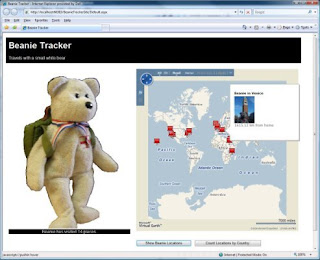
  • Use push-pins to show the locations that Beanie has visited, and include a photograph and the distance from home in the tooltip displayed for each push-pin.
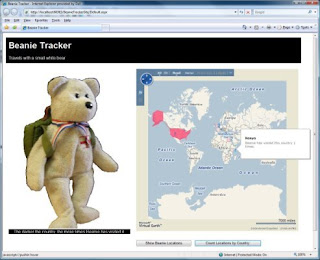
  • Overlay countries Beanie has visited with a colored shape - the more often Beanie has visited the country, the darker the color of the shape.

The first step is to display the Virtual Earth map control in the Web page. The map control is freely available, and provides a Javascript-based API that you can use from pretty much any Web application to add mapping capabilities to your Web site. To include the control in your Web page, you need to do four things:

In the body of the Web page, create a <div> element where you want the map to be displayed:

<div id='mapDiv' style="position:relative; width:600px; height:600px;"/>

In the head of the page, add a reference to the Virtual Earth map control script library:

<script type="text/javascript" src="http://dev.virtualearth.net/mapcontrol/mapcontrol.ashx?v=6">

</script>

In the head of the page, add a script to display the map in the <div> area you created in step 1:

<script type="text/javascript">

var map = null;

// Display the map control

function GetMap()

{

map = new VEMap('mapDiv');

map.LoadMap();

map.SetCenterAndZoom(new VELatLong(0, 0), 1);

}

</script>

In the <body> tag, assign your script to the onload event:

<body onload="GetMap();">

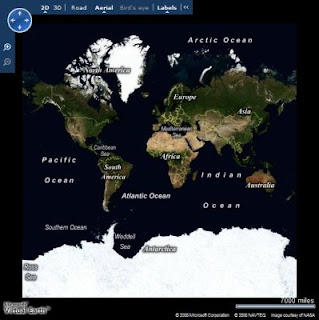
Using only this code, you can include a fully-functional Virtual Earth map control in your Web page. The control provides the ability for users to click and drag to move around the map, zoom by double-clicking or using a mouse scroll wheel, and change the view from a basic map, to arial view (based on satellite imagary) or even to birds-eye view (low level arial photography) where available. The map control is shown here:

On its own, the map control provides some interesting functionality, but for the Beanie Tracker application I want to use the control's API to visualize the data from the database. The key challenge here is to get the data from the database (which is on the server) to the Javascript used to render it on the map (which is in the browser). There are a number of ways to do this, including creating a Web Service or implementing a .aspx page that returns a text/xml document instead of HTML; but one of the most common is to implement a custom HTTP handler that returns the data as a GeoRSS feed, and consume that feed from the Javascript in the Web page. GeoRSS is an XML-based feed format for exchanging Geographic Markup Language (GML) elements across the Internet. Here's an example of a GeoRSS feed:

<?xml version="1.0" encoding="utf-8" ?>

<feed xmlns="http://www.w3.org/2005/Atom"
xmlns:georss="http://www.georss.org/georss"
xmlns:gml="http://www.opengis.net/gml">

<title>BeanieTracker</title>

<subtitle>Beanie Locations</subtitle>

<link href=http://www.graemesplace.com/beanietracker.htm/ />

<updated>10/11/2008 09:28:09</updated>

<author>

<name>Graeme Malcolm</name>

</author>

<entry>

<title>Beanie diving in the Red Sea</title>

<description><img src='Photo.aspx?PhotoID=1' height='100'/><p>4329.09 km from
home</p></description>

<georss:where>

<gml:Point xmlns="http://www.opengis.net/gml">

<gml:pos>27.8487 34.2865</gml:pos>

</gml:Point>

</georss:where>

</entry>

<entry>

<title>Beanie at Edinburgh Castle</title>

<description><img src='Photo.aspx?PhotoID=2' height='100'/><p>18.05 km from
home</p></description>

<georss:where>

<gml:Point xmlns="http://www.opengis.net/gml">

<gml:pos>55.9486 -3.2005</gml:pos>

</gml:Point>

</georss:where>

</entry>

</feed>

To get this feed to the browser, I created an HTTP handler that builds the XML for the feed, inserting the GML representations of the spatial data in the database; which are retrieved through some stored procedures in the database itself. Since there are two options that the user can use to retrieve a GeoRSS feed (one for photos of locations Beanie has visited, and one for a list of countries and a count of visits Beanie has made to them), I added some logic in the HTTP handler to look for a parameter, and create the appropriate feed with data from the corresponding stored procedure. The main sections of code (in VB .NET) from the handler are shown here:

Public Sub ProcessRequest(ByVal context As HttpContext) Implements
IHttpHandler.ProcessRequest

context.Response.ContentType = "text/xml"

Dim rssOutput As New System.Text.StringBuilder("<?xml version='1.0' encoding='utf-8'?>")

Try

'Build the GeoRSS feed

rssOutput.AppendLine("<feed xmlns='http://www.w3.org/2005/Atom'")

rssOutput.AppendLine("xmlns:georss='http://www.georss.org/georss'")

rssOutput.AppendLine("xmlns:gml='http://www.opengis.net/gml'>")

rssOutput.AppendLine("<title>BeanieTracker</title>")

rssOutput.AppendLine("<subtitle>Beanie Locations</subtitle>")

rssOutput.AppendLine("<link href='http://localhost/beanietracker/'/>")

rssOutput.AppendLine("<updated>" + System.DateTime.Now + "</updated>")

rssOutput.AppendLine("<author>")

rssOutput.AppendLine("<name>Graeme Malcolm</name>")

rssOutput.AppendLine("</author>")

Dim dataParam As String = context.Request.QueryString("data")

If Not dataParam Is Nothing Then

If dataParam = "locations" Then

GetPhotos(rssOutput)

ElseIf dataParam = "countries" Then

GetCountries(rssOutput)

Else

Throw New Exception("Invalid parameter")

End If

End If

'Close the <feed> document and send it as the response

rssOutput.Append("</feed>")

context.Response.Write(rssOutput.ToString())

Catch e As Exception

OutputError(e.ToString(), context)

End Try

End Sub


Private Sub GetPhotos(ByRef rssOutput As System.Text.StringBuilder)

Using sqlConn As New SqlConnection(connStr)

'Open a connection to the database

sqlConn.Open()

Dim spName As String

'Use the GetPhotosGML stored proc to get all stores by default

spName = "GetPhotosGML"

Using cmd As New SqlCommand()

cmd.Connection = sqlConn

cmd.CommandType = Data.CommandType.StoredProcedure

'Specify the stored procedure name as the command text

cmd.CommandText = spName

Using geomRdr As SqlDataReader = cmd.ExecuteReader()

'Read the DataReader to process each row

While (geomRdr.Read())

'Create an <entry> element for this row

rssOutput.AppendLine("<entry>")

rssOutput.AppendLine(String.Format("<title>{0}</title>", geomRdr.GetValue(1)))

rssOutput.AppendLine(String.Format("<description>&lt;img
src='Photo.aspx?PhotoID={0}' height='100'/&gt;&lt;p&gt;{1} km from
home&lt;/p&gt;</description>", _

geomRdr.GetValue(0), geomRdr.GetValue(3)))

'Add a <georss:where> element

rssOutput.AppendLine("<georss:where>")

Dim gml As String

'Get the geography instance GML from column 2

gml = geomRdr.GetValue(2).ToString()

'Append the gml: prefix to all the elements due to VE parsing behavior

gml = gml.Replace("<", "<gml:")

gml = gml.Replace("gml:/", "/gml:")

'Add the <gml:> elements to the output XML

rssOutput.AppendLine(gml)

'Close <georss:where> and <entry> elements

rssOutput.AppendLine("</georss:where>")

rssOutput.AppendLine("</entry>")

End While

End Using

End Using

End Using

End Sub


Private Sub GetCountries(ByRef rssOutput As System.Text.StringBuilder)

Using sqlConn As New SqlConnection(connStr)

'Open a connection to the database

sqlConn.Open()

Dim spName As String

'Use the GetPhotosGML stored proc to get all stores by default

spName = "GetCountriesGML"

Using cmd As New SqlCommand()

cmd.Connection = sqlConn

cmd.CommandType = Data.CommandType.StoredProcedure

'Specify the stored procedure name as the command text

cmd.CommandText = spName

Using geomRdr As SqlDataReader = cmd.ExecuteReader()

'Read the DataReader to process each row

While (geomRdr.Read())

'Create an <entry> element for this row

rssOutput.AppendLine("<entry>")

'Use columns 0 and 1 for the title and description

rssOutput.AppendLine(String.Format("<title>{0}</title>", geomRdr.GetValue(1)))

rssOutput.AppendLine(String.Format("<description>{0}</description>", _

geomRdr.GetValue(3)))

'Add a <georss:where> element

rssOutput.AppendLine("<georss:where>")

Dim gml As String

'Get the geography instance GML from column 2

gml = geomRdr.GetValue(2).ToString()

'Append the gml: prefix to all the elements due to VE parsing behavior

gml = gml.Replace("<", "<gml:")

gml = gml.Replace("gml:/", "/gml:")

'Add the <gml:> elements to the output XML

rssOutput.AppendLine(gml)

'Close <georss:where> and <entry> elements

rssOutput.AppendLine("</georss:where>")

rssOutput.AppendLine("</entry>")

End While

End Using

End Using

End Using

End Sub

The code merges the GML results from the stored procedures into an XML feed, which is built up using simple string concatenation. You could use an XmlDocument or XmlWriter for this (or you could even use SQL Server's native XML support to generate the complete XML in the stored procedures), but this approach makes it easier to see what's going on. Note that SQL Server includes a gml:http://www.opengis.net/gml namespace declaration in the query results. However, the Virtual Earth map contol appears to require that all namespaces be declared in the root element of the feed, so I had to add code to strip out the namespace in the query results.

Next I needed to register the HTTP handler so that any requests for URLs with the extension .georss are handled by the custom handler, and not treated as regular ASP.NET pages. There's nothing special about the extension .georss by the way, I just chose to use that for my handler. To register a custom handler, you need to edit the Web.Config of your ASP.NET application. The specific entry you need to create depends on whether you are using IIS 6 or IIS 7 - see this KB article for more information. The configuration I used is shown here:


<httpHandlers>

<!--Register the GeoRSSHandler for .georss requests -->

<add verb="*" path="*.georss" type="GeoRSSHandler" validate="false"/>

</httpHandlers>

Finally, I needed to create some client-side Javascript to retrieve the feed and import it into the Virtual Earth map control. Here are the functions to do this (one to retrieve the photo locations feed, and one to retrieve the countries feed):

function ShowBeanieLocations()
{
try
{
map.DeleteAllShapes();
// Import GeoRSS feed of location data, and call onBeanieLocationsLoad function
when the data is loaded
var veLayerSpec = new VEShapeSourceSpecification(VEDataType.GeoRSS,"./Beanie.georss?data=locations");
map.ImportShapeLayerData(veLayerSpec, onBeanieLocationsLoad, true);
}
catch(e)
{
document.getElementById("Info").innerHTML = e.Message;
}
}

function ShowCountries()
{
try
{
map.DeleteAllShapes();
// Import GeoRSS feed of country data, and call onCountriesLoad function when the data is loaded
var veLayerSpec = new VEShapeSourceSpecification(VEDataType.GeoRSS,"./Beanie.georss?data=countries");
map.ImportShapeLayerData(veLayerSpec, onCountriesLoad, true);
}
catch (e)
{
document.getElementById("Info").innerHTML = e.Message;
}
}

Both of these functions follow the same basic procedure:

  1. Clear all existing shapes from the map control
  2. Retrieve the feed by requesting a .georss file wth the appropriate parameter (note that the actual file name is unimportant, the custom handler handles all .georss requests)
  3. Import the feed into the map control as a shape layer by using the ImportShapeLayerData method

The ImportShapeLayerData method is asynchronous, so a callback function to be run when the impoprt has completed is specified. Here are the callback functions in the Beanie Tracker application:

function onBeanieLocationsLoad(feed)
{
// Count the shapes returned
var locationcount = feed.GetShapeCount();
document.getElementById("Info").innerHTML = 'Beanie has visited ' +
locationcount + ' places.';
}

function onCountriesLoad(feed)
{
/ / Count the shapes returned
var locationcount = feed.GetShapeCount();
for (i=0;i<locationcount;i++)
{
var s = feed.GetShapeByIndex(i);
s.SetLineColor(new VEColor(0, 0, 0, 0));
var numVisits = s.GetDescription();
s.SetDescription("Beanie has visited this country " + numVisits + " times.");
var transparency = (numVisits % 9) / 10;
s.SetFillColor(new VEColor(255, 50, 100, transparency));
s.SetCustomIcon("<img src='images/transparentIcon.png'>" + numVisits +
"</img>");
}
document.getElementById("Info").innerHTML = 'The darker the country, the more times Beanie has visited it.';
}

The callback function for the photo location data feed just counts the number of shapes (which will be rendered as push pins on the map by default since they are all points defined by a single lat/long pair) and displays the total. The callback for the countries data is a little more complicated - The elements returned are polygons, and so will be rendered as shapes of countries on the map; the code changes the transparency property of each shape to reflect the number of visits Beanie has made to the country, so that the more visits Beanie has made, the darker the country will appear. Note that by default a pushpin is displayed in the center of the shape, but I've used the SetCustomIcon method to specify that a transparent image should be used instead and included the number of visits as text, so that's what appears on the map.

The last step is to hook the methods that retrieve the feeds up to the buttons on the Web page:

<input id="Button1" type="button" value="Show Beanie Locations"
onclick="javascript:ShowBeanieLocations()" />

<input id="Button2" type="button" value="Count Locations by Country:"
onclick="javascript:ShowCountries()"/>

The resulting page is shown here:


One minor issue I had to deal with is that the ImportShapeLayerData method of the Virtual Earth map control does not seem to handle MultiSurface GML elements in the GeoRSS feed. I had to change the spatial data for countries with multiple land masses to a single polygon in the database by adding a very thin line between each land mass. If anyone knows of a workaround for this, I'd love to hear about it!

Read More >>